This tutorial will walk you through the basics of using Google Maps to create custom maps. It was lightly edited in the Fall of 2025 for my HIST 696 Clio Wired graduate class.
Getting started
Sign in to your Google account (or create one if you don’t already have one). You can then navigate to the right place from either Google Maps (https://www.google.com/maps ) or go straight to Google’s My Maps (http://mymaps.google.com and click the red “Create a New Map Button.”)
If you start from Google Maps, select the dropdown menu in the upper left hand part of the screen.
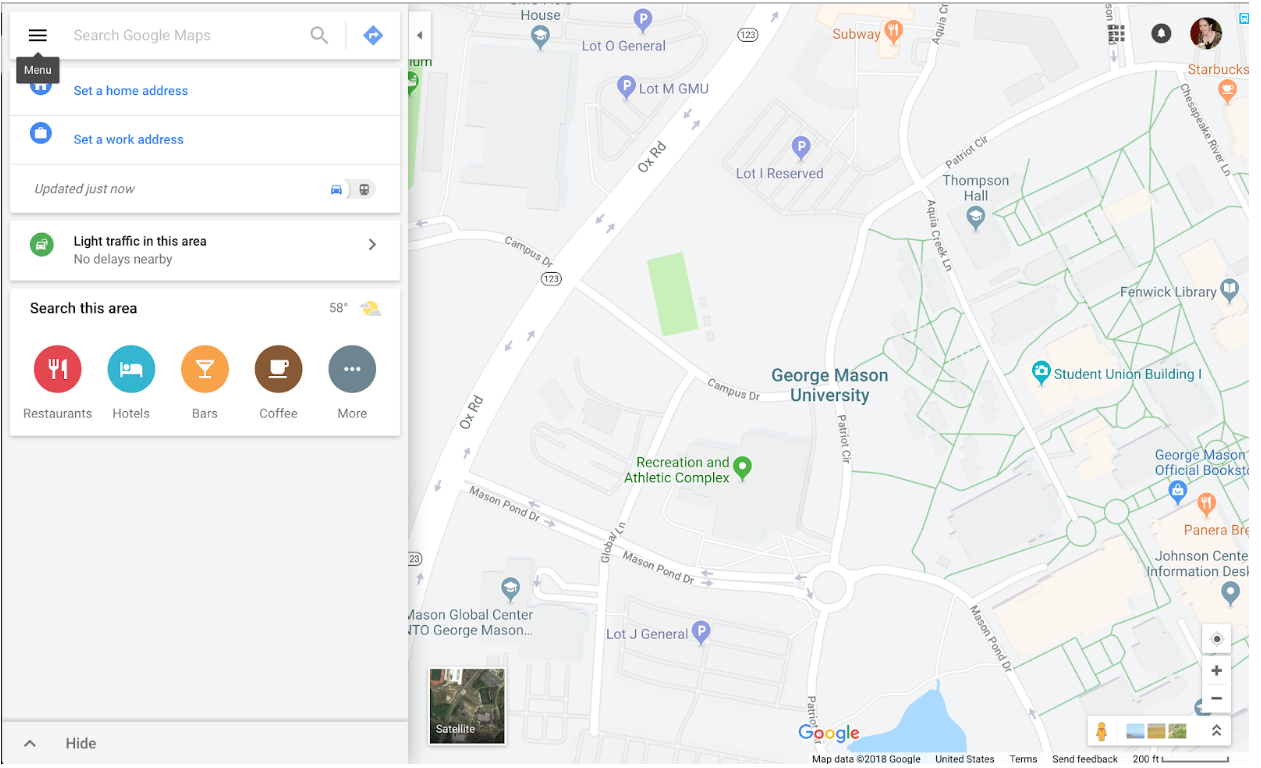
From the menu, select “Saved.” Your Saved menu will look very similar to but not identical to the screenshot below. From the “Saved” menu, select “maps.”
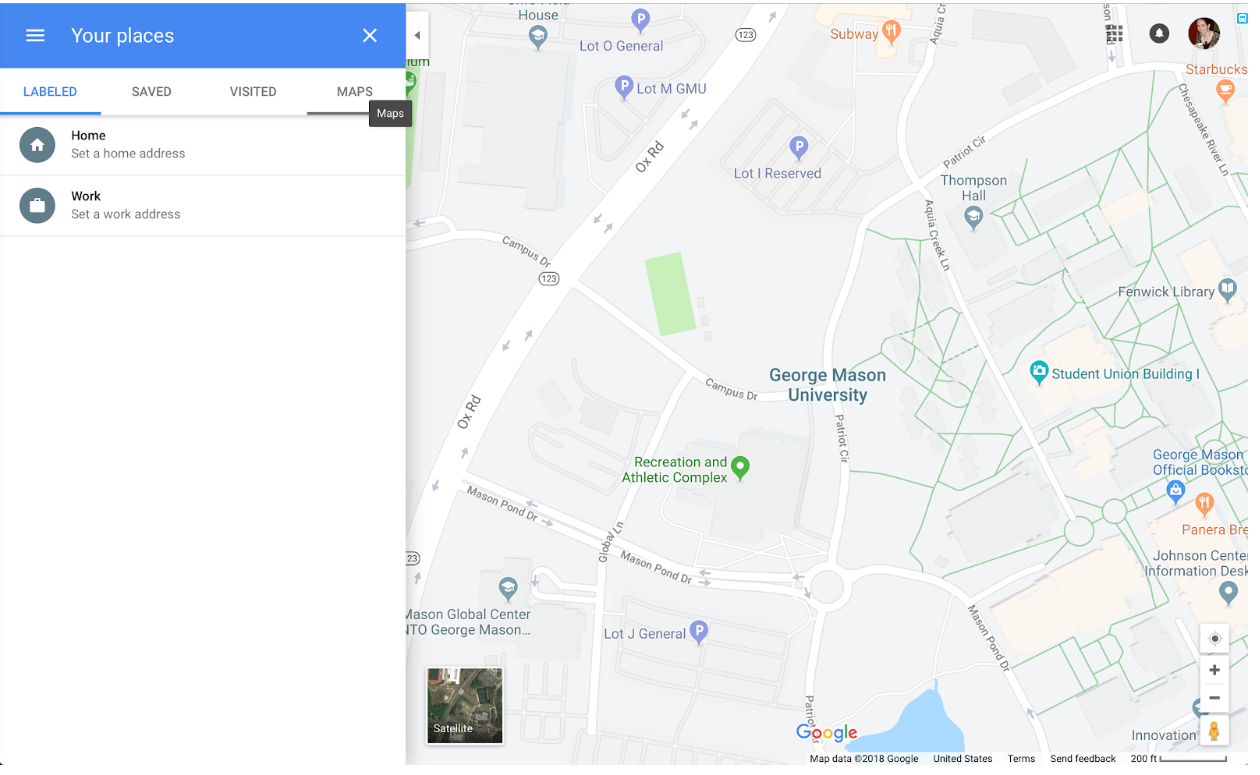
From the “maps” menu, click the button at the very bottom that says “create map.”
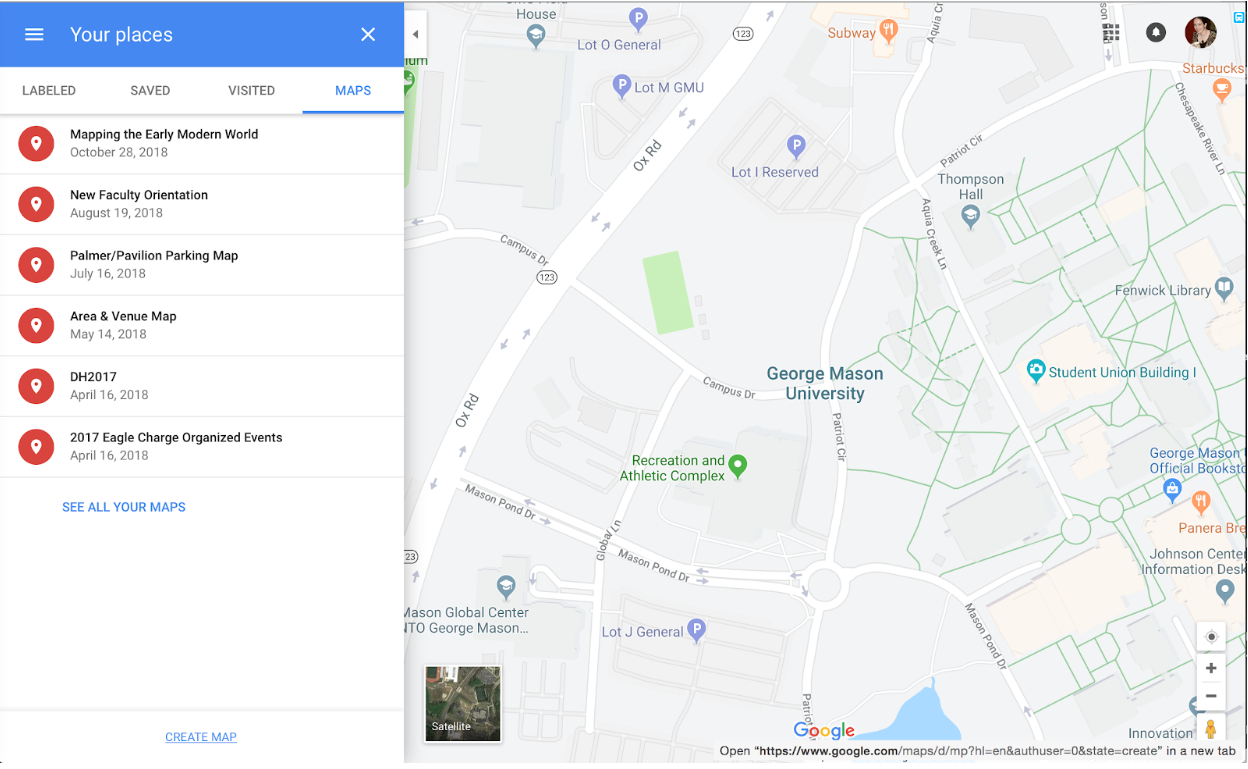
Either way you go, you will now have an “untitled map” that you can add points, lines, shapes, and layers to, not unlike the work we did in QGIS. Google Maps does NOT have the same, advanced calculating functionality that QGIS does, but it does create familiar-to-users online visualizations.
Putting Stuff On Your Map

Double-click on the text “untitled map” to bring up a window that will give you the chance to rename your map and describe it.
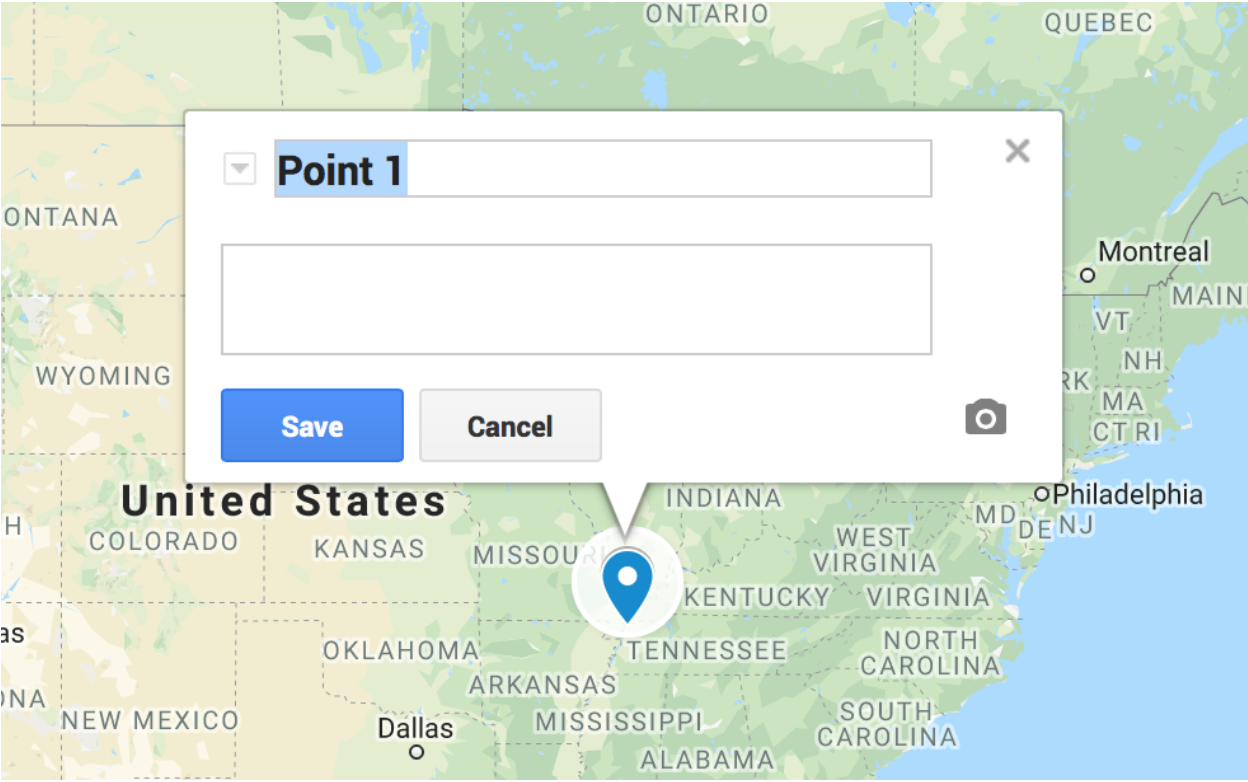
If you want to add points to your map, use the marker (upside-down teardrop) icon then click where you want your points to be. You can use the search bar to look for a specific location and add that directly to your map as well. Google makes it easy for you to add text (in the textboxes) or images (click the camera icon) to your points as you create them.
The icon with the trio of nodes that looks a bit like a network diagram will let you draw lines or, if you close the line, it will automatically convert the line into a polygon shape.
The curving arrow icon will let you add directions to your map.
If you want multiple layers that you can toggle on and off (to show, for example, change over time) you do that with the “layer” panel in the left-hand menu.
You can also use that menu to change the base map and share your finished map with other people.
Teaching With Maps
For an example of how to teach with Google Maps, see this guide from Teachinghistory.org or Julia M Gossard’s “Mapping the Early Modern World: Using Google Maps in the Classroom.”
