This is a tutorial to walk you through the basics of using GitHub to share and version-control files. It was last updated in fall 2022.
Background
GitHub is a hosting service for projects that use Git for version control (tracking changes) and project management. There are three common ways to access GitHub:
- accessing the https://github.com website in the web browser of your choice
- using a downloadable application called GitHub Desktop, available at https://desktop.github.com
- using a command line application (e.g. Terminal on a computer using MacOS)
This tutorial will briefly introduce the command line at the end, but focus primarily on the GitHub.com website and GitHub Desktop as being the most cross-platform friendly way to access GitHub for people unfamiliar with the command line.
If you get an alert that you do not have Git installed, you can download and install it from https://git-scm.com/downloads.
Getting Started
First, go to GitHub.com and sign up for a GitHub account. Whatever you choose as your username will be included in the URL of all your GitHub repositories. E.g. my username is jmotis and so the list of all my GitHub repositories is available at https://github.com/jmotis and the repositories themselves have URLs like https://www.github.com/jmotis/insert-repository-name-here You can add profile information through the website (e.g. pictures, work information, Twitter handles, etc.) or not as you choose.
Installing GitHub Desktop
Download and install GitHub Desktop from https://desktop.github.com. Note: this program only works for computers running MacOS 10.12 or later or Windows 7 64-bit or later. If you are attempting to access GitHub from a device running a mobile phone operating system (including phones, tablets, and chromebooks) you will not be able to download this program and will need to use GitHub solely through the website.
 You will then need to sign into (or authenticate) your GitHub.com account in GitHub Desktop. When you open the program for the first time, it should prompt you to sign in. It will also ask you to set how you want your name and/or email address to be displayed on your GitHub commits. I highly recommend using the username@users.noreply.github.com email address it suggests as a default, to ensure your internet privacy.
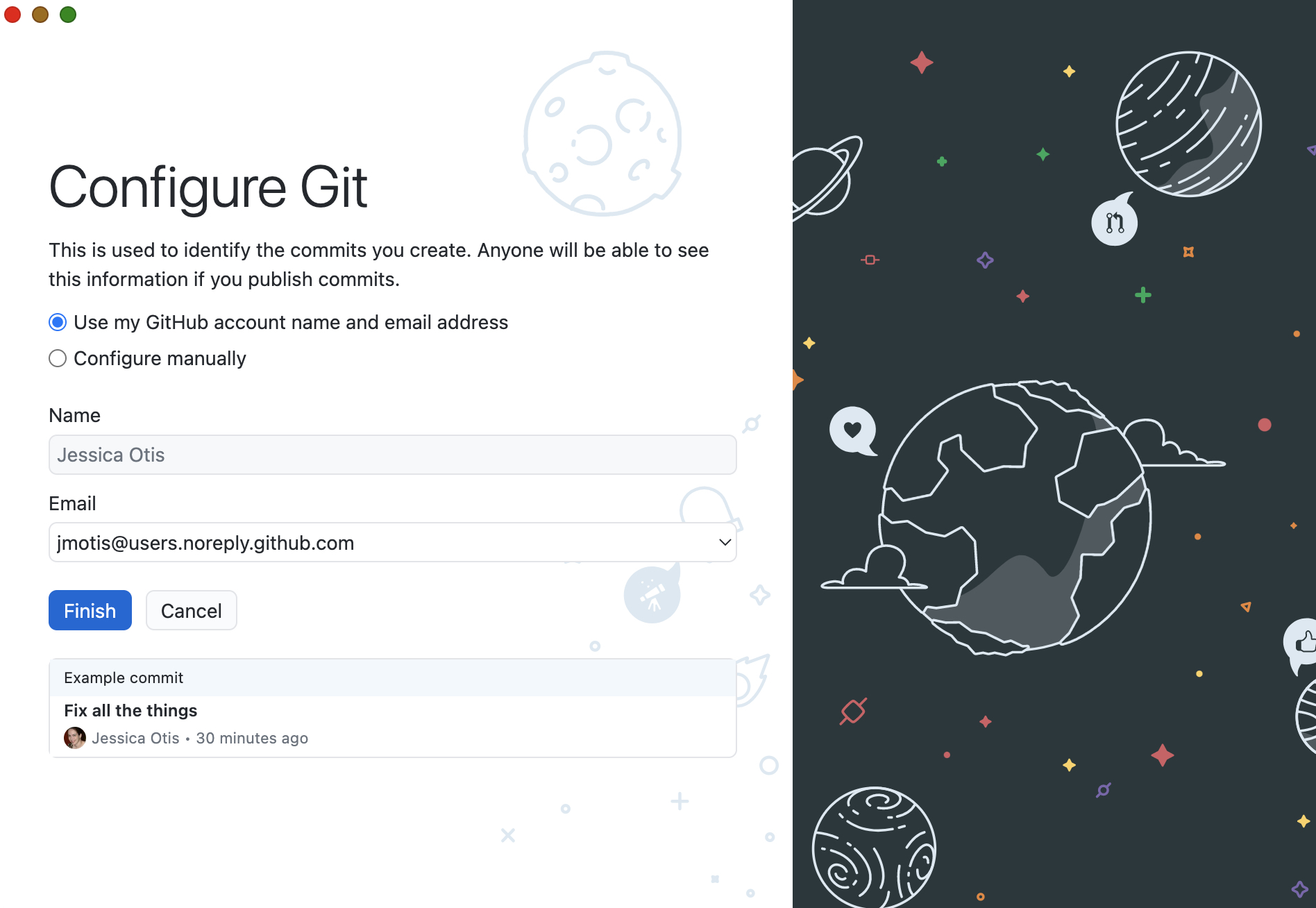
If you don’t see these prompts on your login screen, you can also open the program, navigate to the Preferences item in the main GitHub Desktop dropdown menu, go to the Accounts tab, and sign into your account from there. From that same Preferences item in the main GitHub Desktop dropdown menu, you can go to the Git tab and set how you want your name and/or email address to be displayed on your GitHub commits.
More detailed installation instructions are available through the GitHub documentation on installing/configuring GitHub Desktop, currently available via GitHub itself as https://docs.github.com/en/desktop/installing-and-configuring-github-desktop/installing-and-authenticating-to-github-desktop/setting-up-github-desktop
Creating Your Repository
The basic unit of GitHub is the repository: a collection of files and folders that are being stored and tracked together. You can have as many repositories as you want, but usually people have one repository per project.
From GitHub.com, in either the dashboard view or in the list of your repositories, you should see a green button labeled “New.” Clicking that button will bring up a set-up screen where you can give your new repository a name, initialize a readme.md file, and change a few other preferences.
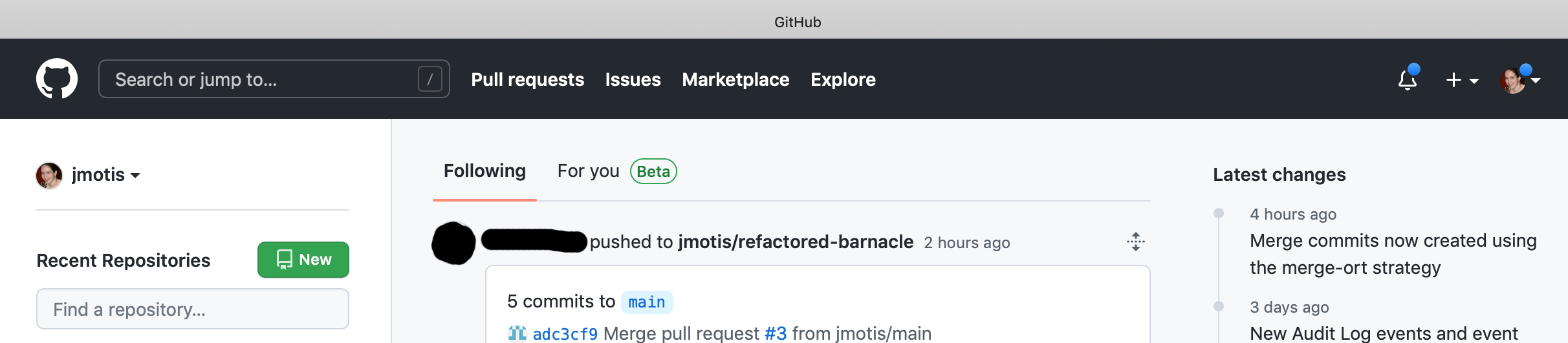
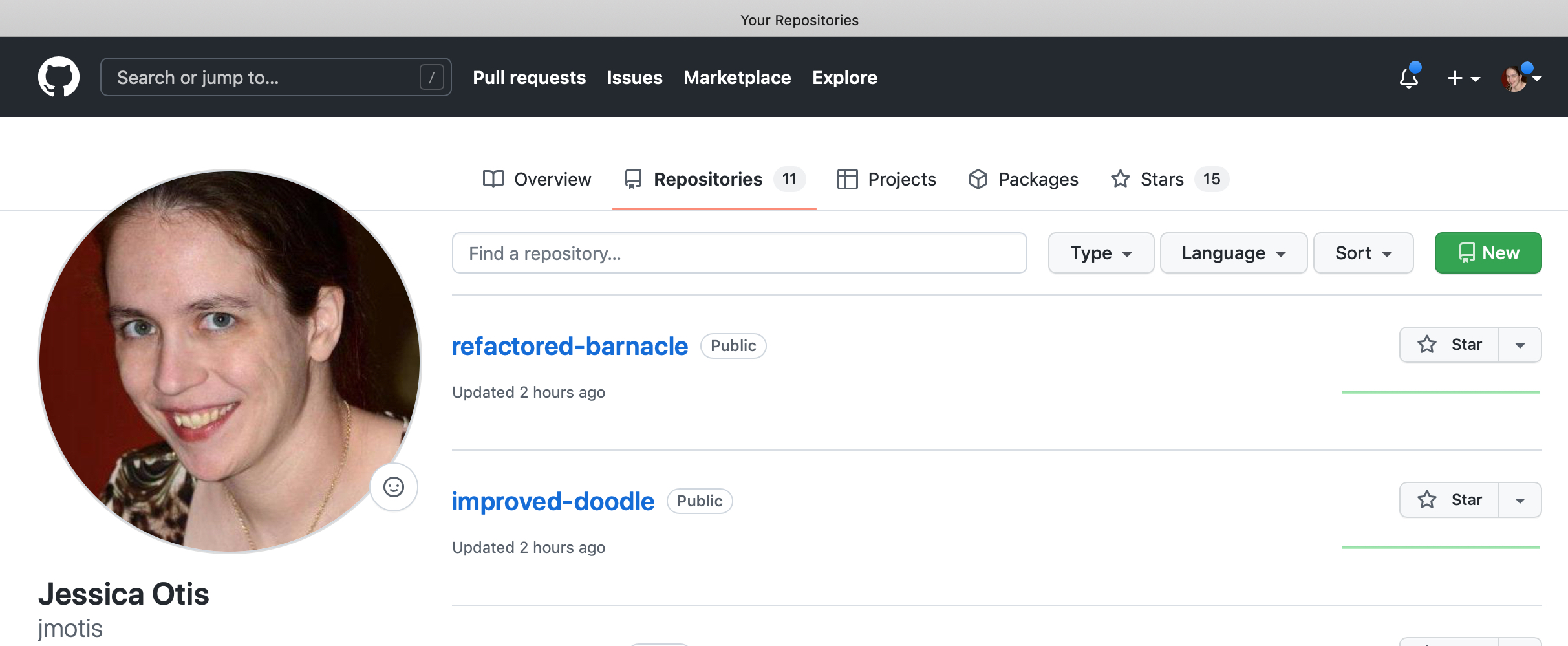
Once you have set up a repository on GitHub.com, you can go to GitHub Desktop and clone that repository from the website (“the cloud”) to your computer (your hard drive/local copy) using the top dropdown menu File < Clone Repository. If you don’t have any repositories on your GitHub Desktop yet, you will also see a prompt on the opening screen that includes the option to “Clone a Repository from the Internet” which does the same thing. You can use this same cloning process to make a local copy of any repository which someone else creates and adds you as a collaborator on, not just the ones you yourself create.
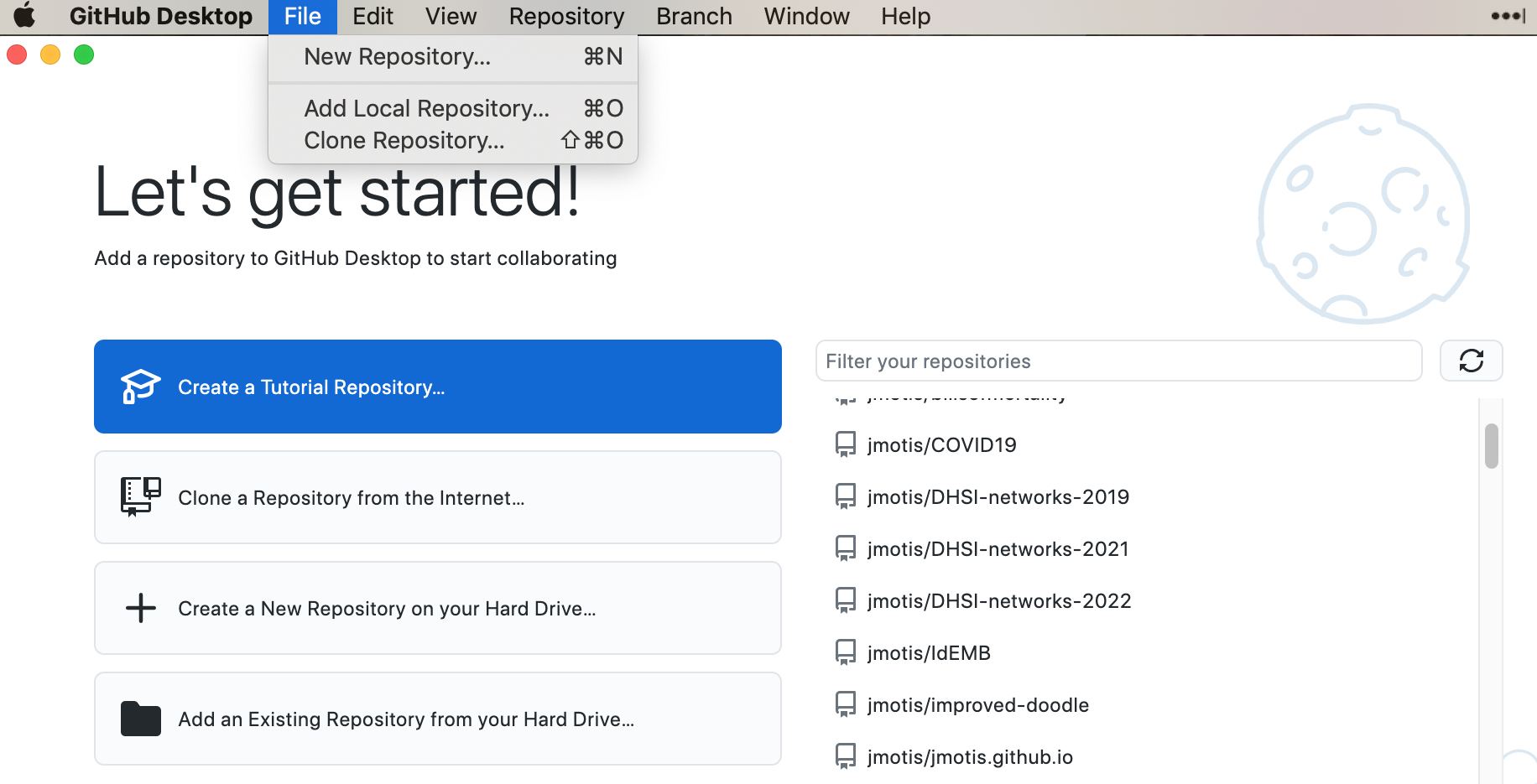
Note that you also have the option to create a new repository from the File menu (File < New Repository) and from the opening screen (“Create a New Repository on your Hard Drive”). If you do this, you will have to take the additional step of clicking the blue Publish repository button your screen to send a copy of the repository to GitHub.com for sharing and collaborating.
Making, Editing, and Sharing
Once you have a repository set up in Google Desktop, it will look something like the screenshot below. In the upper left-hand corner is the repository name and dropdown menu where you can switch between repositories (e.g. “improved-doodle”). Next to it will tell you which branch of the repository you’re working in (more in a moment – right now “main” is where we want to be). The third item at the top of the menu is where you will fetch or pull any changes from GitHub.com to your local version of the repository. Click that now, just to see what happens. It’s a good idea to pull any new changes from the website before making any local changes, so you don’t have to manually merge the website version and your local version later.
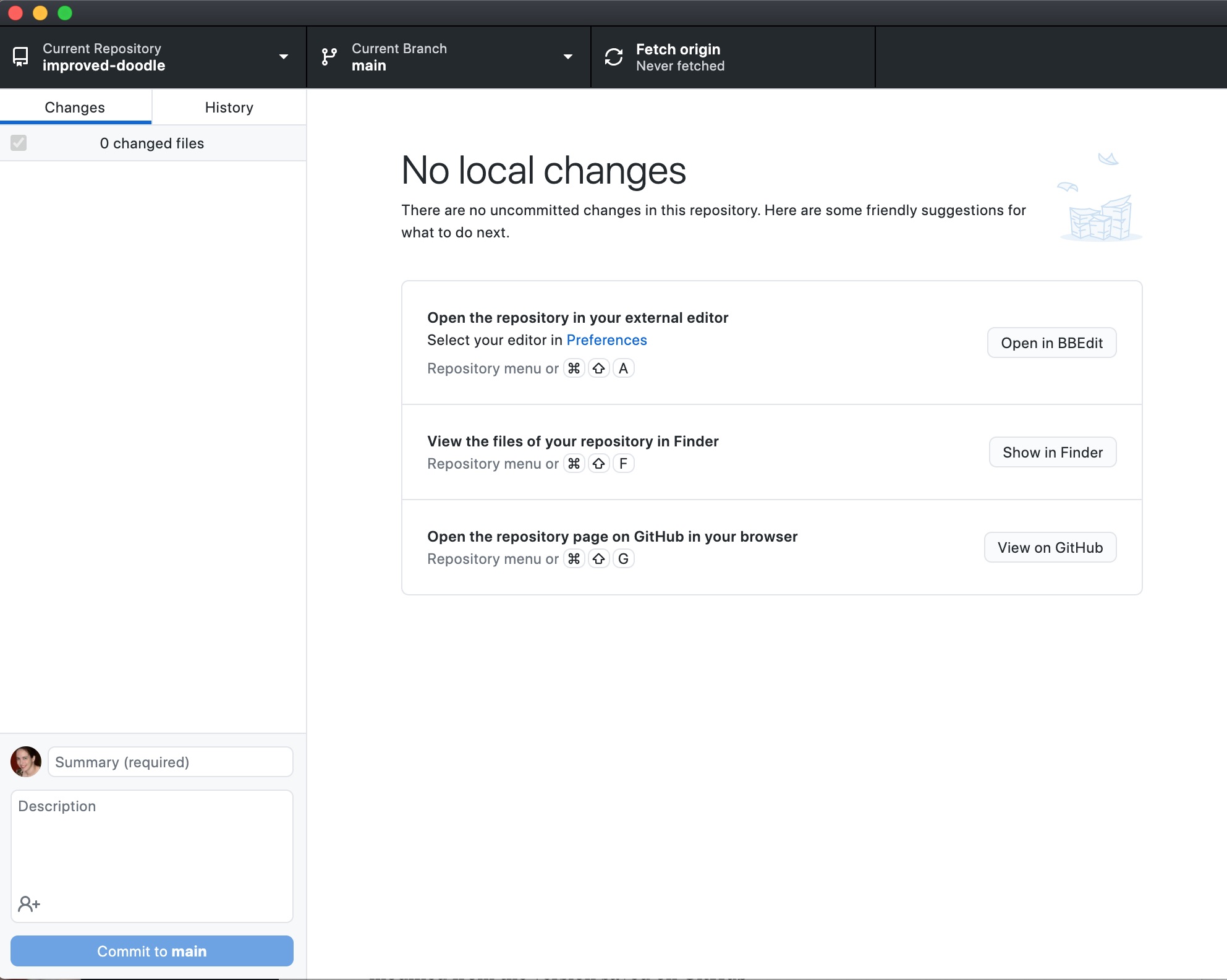
In the middle of the screen, you should see the large text “No local changes” which tells you that the GitHub.com version of the repository and your local version are the same. Below that are text items suggesting you open the repository in an external editor (mine has been set to BBEdit) or show your repository in Finder. Once you have opened and edited files, or added new files to the repository, this screen will update to indicate there are uncommitted changes – local changes that you haven’t pushed to GitHub.com yet.
On the left hand menu of the screen, you will see there are two options: changes and history. Under changes, you will see a list of all the files in the repository that you have changed locally (currently none). Under history, you will see a list of all the commits that have ever been made for the repository (currently not visible in the screenshot). Below that you will see a pair of boxes with the faded out text “Summary (required)” and “Description” above a blue “Commit to main” button. Once you have made changes to the files locally, you will fill out a summary of your changes (e.g. “updating the Readme.md file”) and add a longer description if you think it necessary. Then you will click the blue button to Commit to main.
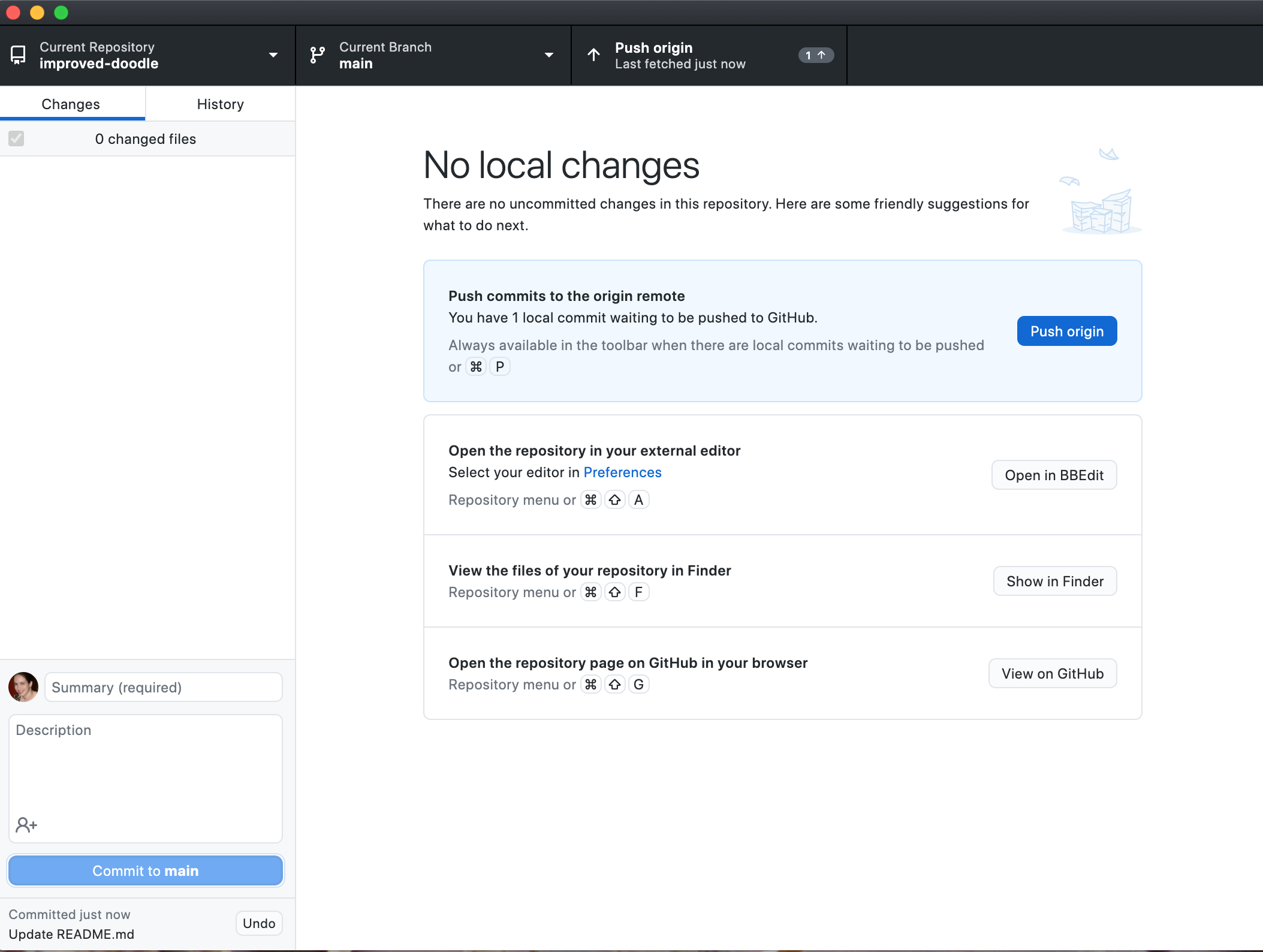
The text in the middle of the screen should update to indicate you have a local commit that has not been pushed to GitHub. That is, you’ve saved the change locally but you now need to tell GitHub.com that it should also save the change. Click the blue “Push Origin” button to finish the job. Now everyone with access to the repository on GitHub.com can see your changes.
It is also possible to create and edit files without using GitHub Desktop. When you go to a repository’s page on GitHub.com, you will see a green button labeled “Code” approximately in the middle of the screen. To the immediate left of that is a button labeled “Add file” which opens a dropdown menu that lets you create a new file in your browser, or upload an existing file from your local computer.
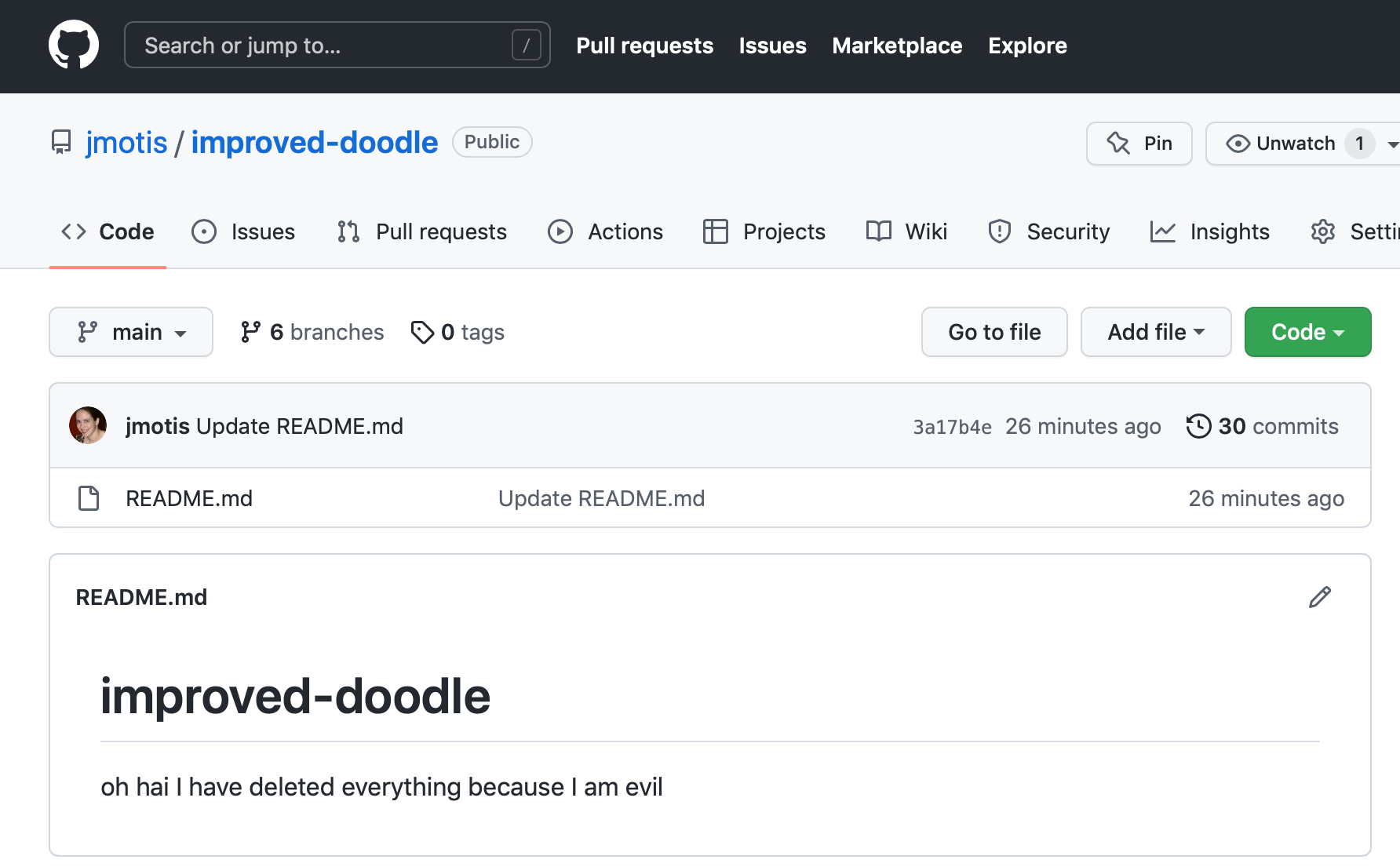
If you want to edit an existing file locally, you can click the green button labeled “Code” which gives you a dropdown menu that will let you download a ZIP file of the repository. Once you’ve saved that locally uncompress or unzip the file, then make whatever changes you want to the file on your computer. You will then need to use the “Add file” button to upload the changed files. Alternatively, some text files (e.g. MD files like the Readme) will have an edit pen icon that you can click and type changes directly into the website without downloading anything.
All changes still require a commit message.
Managing Branches
Another common thing that you may want to do on GitHub is to create branches so that you can all edit in parallel and merge your changes together later. You will not be required to do this for your mini-assignments or for your final project, so from here I will just point you to the GitHub documentation on how to manage branches in GitHub Desktop:
and
Once More, With Command Line
If you are using the command line (e.g. Terminal on a Mac) you will be using the following commands to navigate through your computer directory (folders):
- ls – provides a list of the folders and files in the current directory/folder
- cd <insert directory name here> – change directory/folder
- e.g.: cd Desktop takes you to the Desktop folder, assuming it’s in the current directory/folder
- note: if you start typing the directory name, then hit tab, it will autocomplete the directory/folder name (or as much as possible if you have two similarly named directories, either of which could be the one you were referring to, e.g. HIST696 and HIST688 would only complete to HIST6)
- cd .. – takes you up one directory/folder level
- cd ../.. – takes you up two directory/folder levels
To save a current GitHub repository to your computer, navigate to the directory/folder where you want to save it on your computer. Then, on GitHub, find the repository you want to save. There should be a green button that says “Code” with a triangle to open a menu. In the menu, you should see an option to Clone using HTTPS and what looks like a regular URL with .git appended to the end. Copy/paste that. Then, on the command line, type:
- git clone <URL provided by GitHub> – this clones the GitHub repository to your computer
- e.g. git clone https://github.com/jmotis/DHSI-networks-2022.git
To update the local version of your repository going forward, use the following commands:
- git pull – this checks for any updates in the GitHub repository and downloads them to your local computer
- git status – this checks to see what files you haven’t added to the GitHub repository or have modified from the version saved on GitHub
- git add -A – this adds all new and modified files to the queue to be updated on GitHub
- git add <insert folder or filename here> – this only adds one file or folder at a time to the queue to be updated on GitHub
- git commit -m “<insert text here>” – this tells people what you’ve changed
- git push – this actually makes the changes on GitHub
One of the most common things that happens with multiple people using a repository is conflicting changes. See https://dangitgit.com for instructions on how to fix this issue.
Another common thing that you may want to do on GitHub is to create branches. In the command line, you will want to follow these instructions: https://git-scm.com/book/en/v2/Git-Branching-Basic-Branching-and-Merging
For more on how to use git in the command line, I recommend the Software Carpentry introduction to Git https://swcarpentry.github.io/git-novice/. You may also find https://dangitgit.com and https://git.wtf useful/entertaining, while https://git-scm.com has extensive documentation.
